The Impatient Programmer's Guide to Bevy and Rust: Chapter 5 - Let There Be Pickups
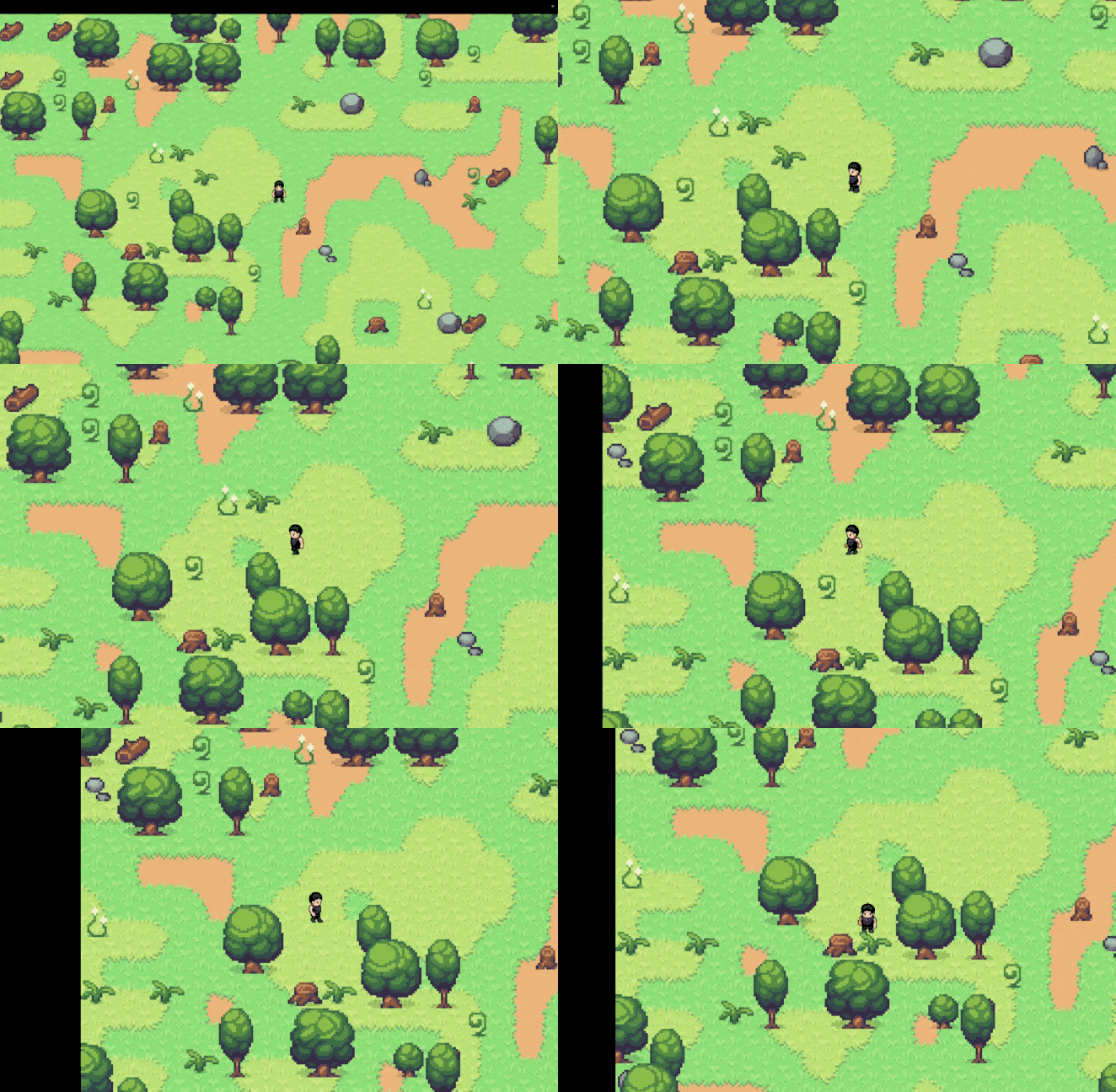
By the end of this chapter, you’ll have an inventory system that lets your player collect items from the world, and a smooth camera that follows them around. Walk near a plant or mushroom, and it disappears into your inventory. Move across the map, and the camera keeps you centered with buttery-smooth motion.
Prerequisites: This is Chapter 5 of our Bevy tutorial series. Join our community for updates on new releases. Before starting, complete Chapter 1: Let There Be a Player, Chapter 2: Let There Be a World, Chapter 3: Let The Data Flow, and Chapter 4: Let There Be Collisions, or clone the Chapter 4 code from this repository to follow along.
Building the Pickup System
In Chapter 4, we made solid objects block the player. Now let’s do the opposite: make items the player can walk through and collect.
The Pickup System
Think about how pickups work in games you’ve played:
- Detection: “Is the player close enough to this item?”
- Collection: “Remove the item from the world”
- Storage: “Remember what was collected”
We’ll build this in three parts:
- A
Pickablecomponent to mark items as collectible - A
handle_pickupssystem to detect when the player is near items - An
Inventoryresource to track what’s been collected

Configuring Pickup Radius
Before we build the inventory, let’s add configuration for pickup detection. We already have a config.rs file from Chapter 4 where we centralized collision settings. Let’s add pickup configuration there.
Open src/config.rs and you’ll see it’s organized into modules: player, map, debug. Let’s add a pickup module:
// src/config.rs - Add this section after the player module

/// Pickup/inventory configuration
pub mod pickup {
    /// Default radius for item pickup detection (in world units)
    pub const DEFAULT_RADIUS: f32 = 40.0;
}
What’s a world unit?
In Bevy, positions are measured in world units. Our tiles are 32 units wide (from map::TILE_SIZE), so a radius of 40 units means the player can pick up items from slightly more than one tile away. Not too far, not too close.
Building the Inventory System
Create a new folder src/inventory/ for our inventory module.
Defining Item Types
What kinds of items can the player collect? In our game, we have plants, mushrooms(or something that looks like a mushroom) scattered around the map. Each needs a unique identifier.
Create src/inventory/inventory.rs:
// src/inventory/inventory.rs
use bevy::prelude::*;
use std::collections::HashMap;
use std::fmt;

use crate::config::pickup::DEFAULT_RADIUS;

/// Types of items that can be collected.
#[derive(Debug, Clone, Copy, PartialEq, Eq, Hash)]
pub enum ItemKind {
    Plant1,
    Plant2,
    Plant3,
    Plant4,
}
Display Names
Players don’t want to see “Plant1” in their inventory. They want “Herb” or “Flower”. Let’s add human-readable names:
// Append to src/inventory/inventory.rs

impl ItemKind {
    pub fn display_name(&self) -> &'static str {
        match self {
            ItemKind::Plant1 => "Herb",
            ItemKind::Plant2 => "Flower",
            ItemKind::Plant3 => "Mushroom",
            ItemKind::Plant4 => "Fern",
        }
    }
}

impl fmt::Display for ItemKind {
    fn fmt(&self, f: &mut fmt::Formatter<'_>) -> fmt::Result {
        f.write_str(self.display_name())
    }
}
What’s fmt::Display for?
fmt::Display is like a predefined contract Rust makes with your type. It’s like saying, “If you implement this trait, I’ll let you use {} in print statements.”
Without it, println!("Collected: {}", item_kind) would fail to compile. Rust wouldn’t know how to convert your ItemKind::Plant1 into text for display. By implementing Display, we fulfill the contract, we tell Rust “when you need to print this, call this fmt method I wrote.”
The Pickable Component
Now we need a component to mark entities as collectible. When we spawn a plant in the world, we’ll attach this component to say “the player can pick this up.”
// Append to src/inventory/inventory.rs

/// Component marking an entity as collectible.
#[derive(Component, Debug)]
pub struct Pickable {
    pub kind: ItemKind,
    pub radius: f32,
}

impl Pickable {
    pub fn new(kind: ItemKind) -> Self {
        Self {
            kind,
            radius: DEFAULT_RADIUS,
        }
    }
}
Why store radius per item?
Most items use the default radius (40 units), but maybe you want a treasure chest to have a smaller radius (must be right next to it) or a glowing orb to have a larger one (magnetic pull). Storing it in the component gives you flexibility.
The Inventory Resource
The inventory persists across the entire game session, it’s not tied to any single entity. That’s what Resources are for: global game state that any system can access.
// Append to src/inventory/inventory.rs

/// Resource storing collected items.
#[derive(Resource, Default, Debug)]
pub struct Inventory {
    items: HashMap<ItemKind, u32>,
}
Why HashMap<ItemKind, u32> instead of Vec<ItemKind>?
A Vec would store every individual item: [Plant1, Plant1, Plant2, Plant1...]. To count how many Plant1s you have, you’d scan the whole list. A HashMap stores counts directly: {Plant1: 3, Plant2: 1}. It also makes lookups efficient.
Adding Items to Inventory
Now let’s implement the logic to add items to the inventory:
// Append to src/inventory/inventory.rs

impl Inventory {
    /// Add an item to the inventory, returns new count.
    pub fn add(&mut self, kind: ItemKind) -> u32 {
        let entry = self.items.entry(kind).or_insert(0);
        *entry += 1;
        *entry
    }

    /// Get a summary string of inventory contents.
    pub fn summary(&self) -> String {
        if self.items.is_empty() {
            return "empty".to_string();
        }

        let mut parts: Vec<String> = self
            .items
            .iter()
            .map(|(kind, count)| format!("{}: {}", kind, count))
            .collect();
        parts.sort();
        parts.join(", ")
    }
}
What’s .entry(kind).or_insert(0) doing?
This is HashMap’s “get or create” pattern. If kind exists in the map, .entry(kind) gets a mutable reference to its value. If not, .or_insert(0) creates it with a count of 0. Then we increment and return the new count.
Why return the count from add?
So the pickup system can log “Picked up Herb (total: 3)”. It’s a small quality-of-life feature that makes debugging easier.
What’s the summary method for?
It formats the inventory for display: “Herb: 3, Flower: 1, Wood: 2”. We sort the items alphabetically so the order is consistent. Later, you could show this in a UI panel or debug overlay.
Pickup Detection System
Now for the system that actually detects when the player is near an item. Create src/inventory/systems.rs:
// src/inventory/systems.rs
use bevy::prelude::*;

use crate::characters::input::Player;
use super::inventory::{Pickable, Inventory};

/// System that checks for and processes item pickups.
pub fn handle_pickups(
    mut commands: Commands,
    mut inventory: ResMut<Inventory>,
    player_query: Query<&Transform, With<Player>>,
    pickables: Query<(Entity, &GlobalTransform, &Pickable)>,
) {
    let Ok(player_transform) = player_query.single() else {
        return;
    };

    let player_pos = player_transform.translation.truncate();
    let mut collected = Vec::new();

    // Check distance to each pickable
    for (entity, global_transform, pickable) in pickables.iter() {
        let item_pos = global_transform.translation().truncate();
        let distance_sq = player_pos.distance_squared(item_pos);

        if distance_sq <= pickable.radius * pickable.radius {
            collected.push((entity, pickable.kind));
        }
    }

    // Process collected items
    for (entity, kind) in collected {
        commands.entity(entity).despawn();
        let count = inventory.add(kind);
        info!(
            " Picked up {} (total: {}) — inventory: {}",
            kind, count, inventory.summary()
        );
    }
}
Let’s break this down step by step.
Getting the Player Position
We query for the player’s position as we did in the earlier chapters.
What’s .truncate()?
Transform.translation is a Vec3 (x, y, z). We’re in 2D, so we only care about x and y. .truncate() converts Vec3 to Vec2, dropping the z component.
Collecting Items to Process
Before we can despawn collected items, we need to identify which ones are within pickup range.
We create an empty Vec and iterate through all pickable items. For each item within range, we store its entity ID and item kind as a tuple (entity, pickable.kind). This gives us a list of everything the player just picked up.
Why distance_squared instead of distance?
The actual distance formula is sqrt((x2-x1)² + (y2-y1)²). Square root is expensive. But we’re just comparing distances, so we can compare the squared distances instead:
distance < radiusis the same asdistance² < radius²- No square root needed, just multiplication
This is a common game dev optimization. When checking hundreds of items every frame, it adds up.
Processing Collected Items
Later we go through the collected items and do the following:
- Despawn the entity: Removes it from the world (no more rendering, no more queries)
- Add to inventory: Updates the count in the HashMap
- Log the pickup: Prints to console for debugging
Why collect items into a Vec first before despawning them?
You might notice we use a two-step pattern: first collect items into a list, then process them. In our Bevy code, we could actually skip this and despawn directly in the loop, but we follow this pattern because it’s a Rust best practice that makes code safer and clearer.
Let’s learn why this pattern exists:
The Borrow Checker
Remember in Chapter 1, where we learned about how Rust gets mad when we don’t put mut when declaring a variable we want to change? That was just the beginning. Rust has more rules about how you can access and modify data, enforced by something called the borrow checker.
What’s a borrow checker?
Let’s start with a fundamental problem: when should we free memory? When you create a variable in most languages, it allocates memory. When you’re done with it, that memory should be freed:

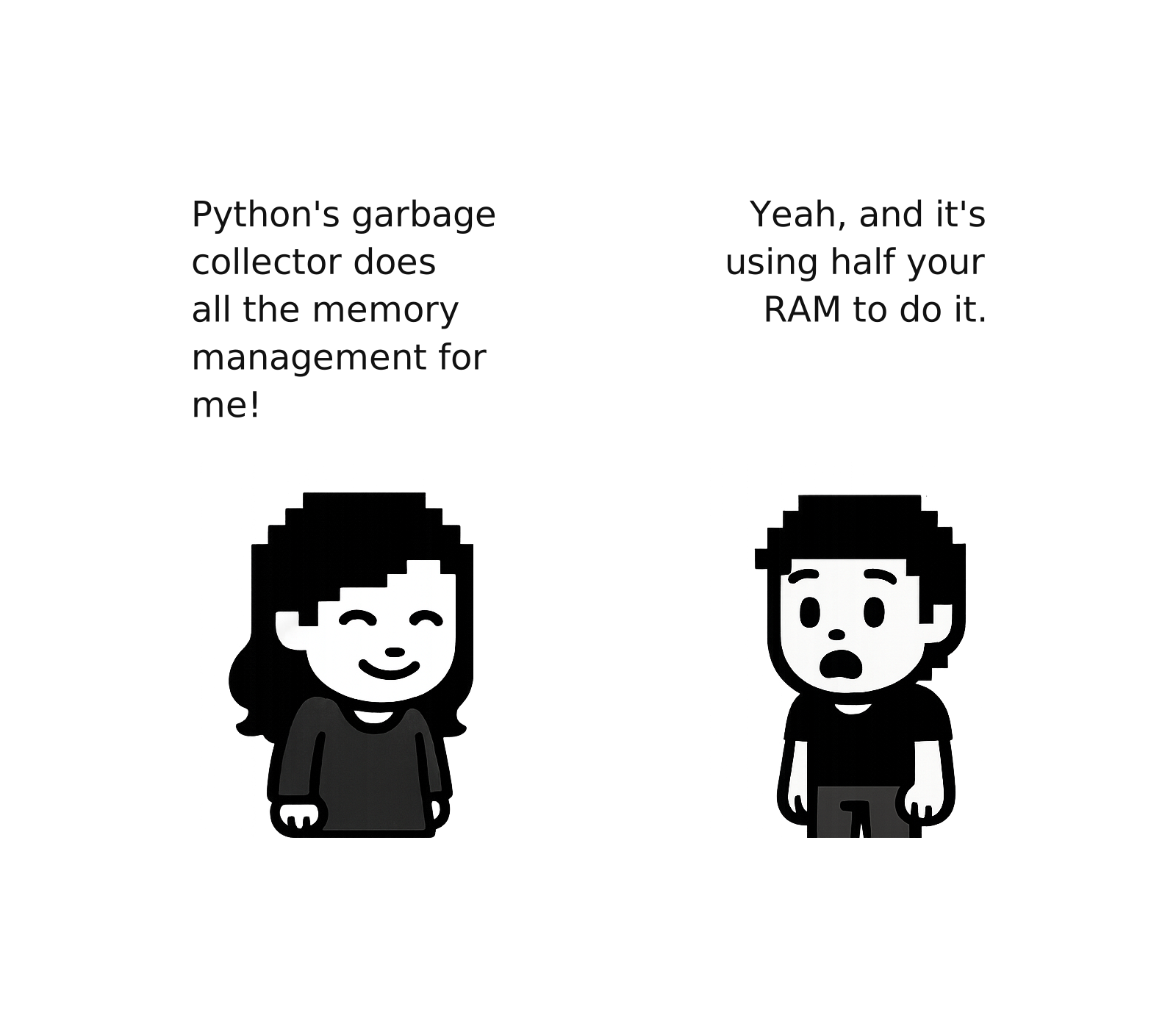
Languages like Python and JavaScript: Garbage Collection
In Python or JavaScript, you never explicitly free variables. A garbage collector runs periodically, checking which variables are still being used:
This is convenient, you don’t think about memory. But it has costs:
- Pause times: The garbage collector must pause your program to scan memory
- Overhead: It tracks every variable at runtime, using extra memory
- Unpredictability: You don’t know when pauses happen
Rust’s Approach: Compile-Time Checks
Rust takes a different approach. It checks at compile time that your code follows strict rules. When the compiler sees these rules followed, it knows exactly when each variable’s memory can be freed, no runtime tracking needed:
// Pseudo code, don't use
fn example() {
    let items = vec![1, 2, 3];  // items owns the vector

    process(items);              // ownership transferred to process()
                                 // items can't be used anymore
}  // Compiler inserts cleanup here - no garbage collector!
The borrow checker enforces rules that let the compiler figure out memory lifetimes. Let’s learn these rules.
The Borrowing Rules
Many readers OR one writer, never both
You can have many immutable references OR one mutable reference, but not both at the same time.
Why? Imagine you’re reading a map while someone is erasing and redrawing it. You might read half-old, half-new data—corruption! This rule prevents that:
Example code:
// Pseudo code, don't use
let mut inventory = vec!["Herb", "Flower"];

let reader1 = &inventory;  // ✓ Immutable borrow
let reader2 = &inventory;  // ✓ Another immutable borrow is fine
println!("{:?}", reader1); // Both can read
println!("{:?}", reader2);

// After the immutable borrows are done being used, we can create a mutable borrow:
let writer = &mut inventory;  // ✓ Now this works
writer.push("Mushroom");
The key insight: borrows end when they’re last used, not when they go out of scope. Once reader1 and reader2 are done (after the println! calls), the mutable borrow is allowed.
This won’t compile:
// Pseudo code, don't use
let mut inventory = vec!["Herb", "Flower"];

let reader = &inventory;
let writer = &mut inventory;  // ✗ ERROR: Can't borrow as mutable while immutably borrowed

println!("{:?}", reader);  // reader still used here
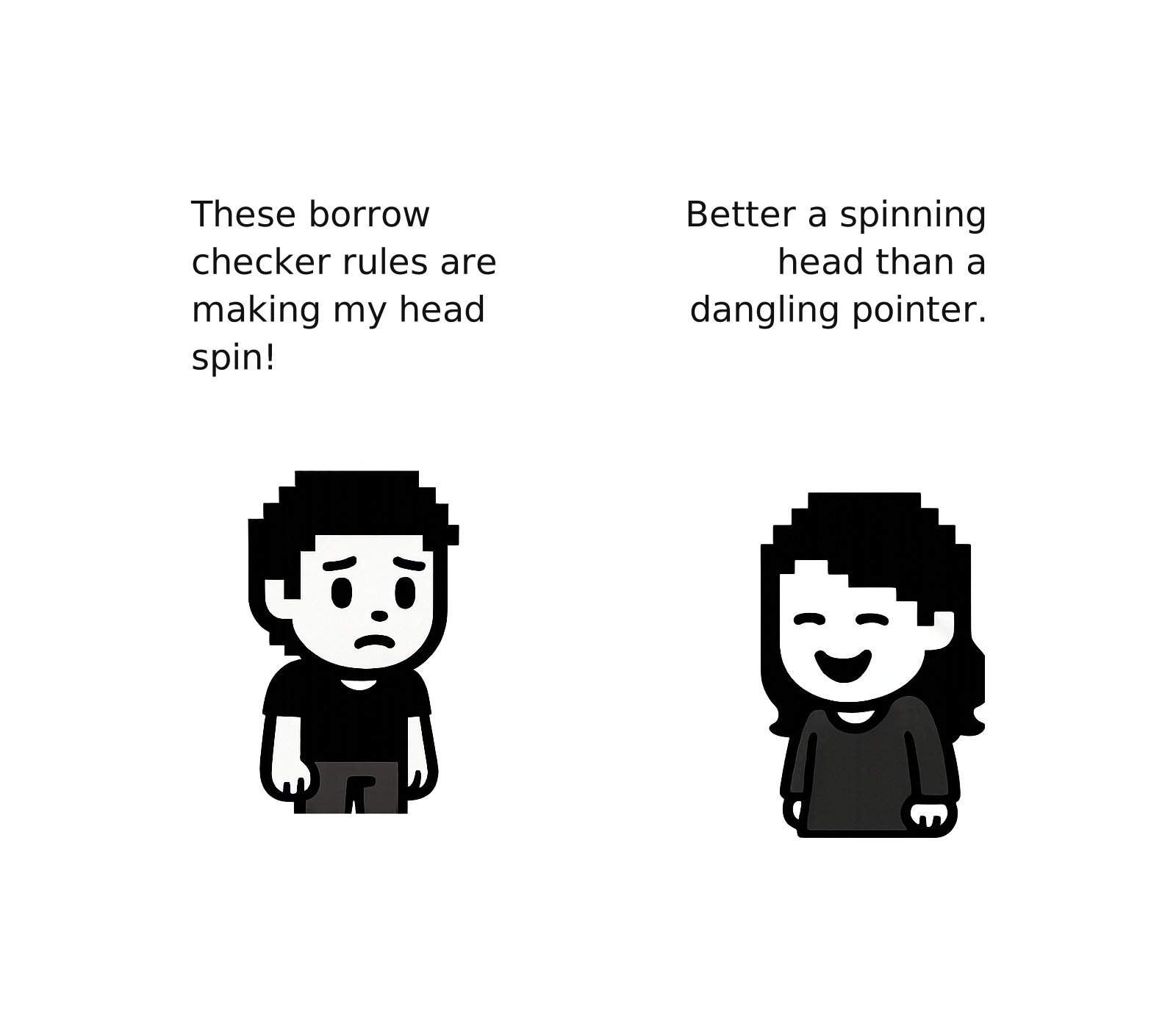
References must always be valid (no dangling pointers)
A reference can’t outlive the data it points to.
Why? In C++, you can create a pointer to memory that gets freed, leaving a “dangling pointer.” Reading it accesses random memory—crash or worse, subtle corruption.
Here’s a C++ example that compiles but crashes at runtime:
int* create_dangling_pointer() {
    int x = 5;           // x is allocated on the stack
    int* ptr = &x;       // ptr points to x
    return ptr;          // Return pointer to x
}  // x goes out of scope here - memory freed!

int main() {
    int* ptr = create_dangling_pointer();

    // ptr now points to freed memory (dangling pointer)
    std::cout << *ptr;   // CRASH! Reading freed memory

    return 0;
}
What happens:
- Function creates local variable
xon the stack - Function returns a pointer to
x - When function exits,
xis destroyed, butptrstill holds its address - Back in
main, usingptrreads memory that’s been freed - Result: undefined behavior (crash, garbage data, or worse)
Rust prevents this at compile time:
// Pseudo code, don't use
fn dangling() -> &String {
    let s = String::from("hello");
    &s  // ✗ ERROR: `s` doesn't live long enough
}  // s is dropped here, but we're trying to return a reference to it!
The compiler rejects this. You must either return the owned value or ensure the reference outlives the data.
How this helps with memory management:
When Rust sees code following these rules, it can prove at compile time that:
- No variable is used after being freed
- No variable is modified while being read
- Memory can be safely freed when the owner goes out of scope
The compiler inserts cleanup code automatically, knowing it’s safe. No garbage collector needed!
Why This Pattern Exists in General Rust
In most Rust code (unlike Bevy’s special Commands), you can’t modify a collection while iterating over it. Here’s a real example that won’t compile:
// Pseudo code, don't use
let mut items = vec![1, 2, 3, 4, 5];

for (index, item) in items.iter().enumerate() {  // ← Immutable borrow starts
    if *item % 2 == 0 {
        items.remove(index);  // ✗ ERROR: Can't mutably borrow while immutably borrowed!
    }
}
Rust rejects this with: “cannot borrow as mutable because it is also borrowed as immutable.”
Why? While .iter() is reading through the list, .remove() tries to modify it. That’s like trying to read a book while someone’s tearing pages out—you might try to read a page that’s gone!
The Safe Pattern: Collect-Then-Process
// Pseudo code, don't use
let mut items = vec![1, 2, 3, 4, 5];
let mut to_remove = Vec::new();

// Step 1: Just reading (immutable borrow)
for (index, item) in items.iter().enumerate() {
    if *item % 2 == 0 {
        to_remove.push(index);
    }
}  // ← Immutable borrow ends

// Step 2: Now we can modify (mutable borrow)
for index in to_remove.iter().rev() {  // Remove from back to front
    items.remove(*index);  // ✓ Safe! No conflicting borrows
}
This pattern separates reading from writing. The borrow checker is happy, and we avoid crashes.
In Our Bevy Code
Even though Bevy’s Commands doesn’t strictly require this pattern (it’s deferred), we use it anyway because:
- It makes our intent clear: “find eligible items” then “process them”
- It follows Rust best practices that work everywhere
- If we later need to work with non-deferred collections, the pattern still applies
Wiring It Together
Create src/inventory/mod.rs to expose the inventory system as a plugin:
// src/inventory/mod.rs
use bevy::prelude::*;

use crate::state::GameState;

mod inventory;
mod systems;

pub use inventory::{ItemKind, Pickable, Inventory};
use systems::handle_pickups;

/// Plugin for inventory and pickup functionality.
pub struct InventoryPlugin;

impl Plugin for InventoryPlugin {
    fn build(&self, app: &mut App) {
        app.init_resource::<Inventory>()
            .add_systems(
                Update,
                handle_pickups.run_if(in_state(GameState::Playing)),
            );
    }
}
What does .init_resource::<Inventory>() do?
It creates the Inventory resource by calling Default::default() (which creates an empty HashMap) and registers it with Bevy. Now any system can access it with Res<Inventory> or ResMut<Inventory>.
Integrating the Plugin
Open src/main.rs and add the inventory module and plugin:
// src/main.rs - Add to module declarations
mod inventory;
Then add the plugin to your app:
// src/main.rs - Add to the plugin chain
.add_plugins(state::StatePlugin)
.add_plugins(characters::CharactersPlugin)
.add_plugins(inventory::InventoryPlugin)  // Add this line
.add_plugins(collision::CollisionPlugin)
Making Items Pickable
Now we have the infrastructure, but no items to pick up! Our procedural map generation system needs to know which decorative objects should be pickable.
Updating the Asset Spawner
Open src/map/assets.rs. First, add the inventory imports at the top of the file:
// src/map/assets.rs - Add to the imports section
use crate::inventory::{ItemKind, Pickable};
Now add a method to the SpawnableAsset struct that marks an asset as pickable:
// src/map/assets.rs - Add this method to the impl block for SpawnableAsset

// Inside impl SpawnableAsset {

/// Make this asset a pickable item.
pub fn with_pickable(mut self, kind: ItemKind) -> Self {
    self.pickable = Some(kind);
    self
}
This method lets us chain .with_pickable(ItemKind::Plant1) when defining spawnable assets.
Next, update the SpawnableAsset struct to store the pickable item kind:
// src/map/assets.rs - Add this field to SpawnableAsset struct

#[derive(Clone)]
pub struct SpawnableAsset {
    sprite_name: &'static str,
    grid_offset: GridDelta,
    offset: Vec3,
    tile_type: Option<TileType>,
    pickable: Option<ItemKind>,  // Add this line
}
Update the constructor to initialize this field:
// src/map/assets.rs - Update the new() method

impl SpawnableAsset {
    pub fn new(sprite_name: &'static str) -> Self {
        Self {
            sprite_name,
            grid_offset: GridDelta::new(0, 0, 0),
            offset: Vec3::ZERO,
            tile_type: None,
            pickable: None,  // Add this line
        }
    }
    // ... rest of the methods
Update the asset loading code:
Since we added a new field to SpawnableAsset, we need to update the destructuring pattern in the load_assets function:
// src/map/assets.rs - Update the destructuring in load_assets function

pub fn load_assets(
    tilemap_handles: &TilemapHandles,
    assets_definitions: Vec<Vec<SpawnableAsset>>,
) -> ModelsAssets<Sprite> {
    let mut models_assets = ModelsAssets::<Sprite>::new();

    for (model_index, assets) in assets_definitions.into_iter().enumerate() {
        for asset_def in assets {
            let SpawnableAsset {
                sprite_name,
                grid_offset,
                offset,
                tile_type,
                pickable, // Add this line
            } = asset_def;

            let Some(atlas_index) = TILEMAP.sprite_index(sprite_name) else {
                panic!("Unknown atlas sprite '{}'", sprite_name);
            };

            // Create the spawner function that adds components
            let spawner = create_spawner(tile_type, pickable); // Line update alert

            models_assets.add(
                model_index,
                ModelAsset {
                    assets_bundle: tilemap_handles.sprite(atlas_index),
                    grid_offset,
                    world_offset: offset,
                    spawn_commands: spawner,
                },
            );
        }
    }
    models_assets
}
Making the Spawner Attach Components
Now update the spawner function to actually attach Pickable components when entities are created. Find the create_spawner function in assets.rs and add cases for pickable items:
// src/map/assets.rs - Update create_spawner function to handle pickables

fn create_spawner(
    tile_type: Option<TileType>,
    pickable: Option<ItemKind>,
) -> fn(&mut EntityCommands) {
    match (tile_type, pickable) {
        // Tile types without pickable
        (Some(TileType::Dirt), None) => |e: &mut EntityCommands| {
            e.insert(TileMarker::new(TileType::Dirt));
        },
        (Some(TileType::Grass), None) => |e: &mut EntityCommands| {
            e.insert(TileMarker::new(TileType::Grass));
        },
        (Some(TileType::YellowGrass), None) => |e: &mut EntityCommands| {
            e.insert(TileMarker::new(TileType::YellowGrass));
        },
        (Some(TileType::Water), None) => |e: &mut EntityCommands| {
            e.insert(TileMarker::new(TileType::Water));
        },
        (Some(TileType::Shore), None) => |e: &mut EntityCommands| {
            e.insert(TileMarker::new(TileType::Shore));
        },
        (Some(TileType::Tree), None) => |e: &mut EntityCommands| {
            e.insert(TileMarker::new(TileType::Tree));
        },
        (Some(TileType::Rock), None) => |e: &mut EntityCommands| {
            e.insert(TileMarker::new(TileType::Rock));
        },
        (Some(TileType::Empty), None) => |e: &mut EntityCommands| {
            e.insert(TileMarker::new(TileType::Empty));
        },

        // Pickable plants (with grass tile type)
        (Some(TileType::Grass), Some(ItemKind::Plant1)) => |e: &mut EntityCommands| {
            e.insert((TileMarker::new(TileType::Grass), Pickable::new(ItemKind::Plant1)));
        },
        (Some(TileType::Grass), Some(ItemKind::Plant2)) => |e: &mut EntityCommands| {
            e.insert((TileMarker::new(TileType::Grass), Pickable::new(ItemKind::Plant2)));
        },
        (Some(TileType::Grass), Some(ItemKind::Plant3)) => |e: &mut EntityCommands| {
            e.insert((TileMarker::new(TileType::Grass), Pickable::new(ItemKind::Plant3)));
        },
        (Some(TileType::Grass), Some(ItemKind::Plant4)) => |e: &mut EntityCommands| {
            e.insert((TileMarker::new(TileType::Grass), Pickable::new(ItemKind::Plant4)));
        },

        // Default: no components
        _ => |_: &mut EntityCommands| {},
    }
}
Marking Props as Pickable
Finally, open src/map/rules.rs. First, add the import at the top:
// src/map/rules.rs - Add to the imports section
use crate::inventory::ItemKind;
Now find the build_props_layer function. This is where decorative objects like plants are defined. Add .with_pickable() to make them collectible:
// src/map/rules.rs - Update the plants section in build_props_layer

// Plants - make them all pickable
terrain_model_builder.create_model(
    plant_prop.clone(),
    vec![SpawnableAsset::new("plant_1")
        .with_tile_type(TileType::Grass)
        .with_pickable(ItemKind::Plant1)  // Add this line
    ]
);
terrain_model_builder.create_model(
    plant_prop.clone(),
    vec![SpawnableAsset::new("plant_2")
        .with_tile_type(TileType::Grass)
        .with_pickable(ItemKind::Plant2)  // Add this line
    ]
);
terrain_model_builder.create_model(
    plant_prop.clone(),
    vec![SpawnableAsset::new("plant_3")
        .with_tile_type(TileType::Grass)
        .with_pickable(ItemKind::Plant3)  // Add this line
    ]
);
terrain_model_builder.create_model(
    plant_prop.clone(),
    vec![SpawnableAsset::new("plant_4")
        .with_tile_type(TileType::Grass)
        .with_pickable(ItemKind::Plant4)  // Add this line
    ]
);
What’s happening here?
We’re using the builder pattern to configure each spawnable asset. .with_tile_type(TileType::Grass) says “this is grass for collision purposes,” and .with_pickable(ItemKind::Plant1) says “the player can collect this as a Plant1 item.”
Run your game:
cargo run
Walk near a plant or mushroom. It should disappear, and you’ll see a log message:
 Picked up Herb (total: 1) — inventory: Herb: 1
 Picked up Flower (total: 1) — inventory: Flower: 1, Herb: 1
 Picked up Herb (total: 2) — inventory: Flower: 1, Herb: 2
Zooming In and Following the Player
Right now, our game window shows the entire map at once. While functional, this has no sense of exploration. You can see everything at a glance, removing the mystery
Let’s zoom in to show only part of the map, making everything larger and more detailed. But this creates a new problem: if the camera stays fixed and only shows part of the map, the player can walk off camera view and disappear!
So we need two changes:
- First, scale up the world (larger tiles and sprites) for a zoomed-in view
- Then, make the camera smoothly follow the player to keep them on screen
We need three things:
- Updated configuration - Bigger tiles, player scale, and camera settings
- Map generation updates - Scale sprites 2× larger
- Camera system - Logic to smoothly track the player
Updating the Config
Our config.rs file already has player, pickup, and map modules. Let’s add camera configuration.
Open src/config.rs and add this new module after the map module:
I
// src/config.rs - Add this after the map module

/// Camera configuration
pub mod camera {
    /// How fast the camera interpolates toward the player (higher = snappier)
    pub const CAMERA_LERP_SPEED: f32 = 6.0;

    /// Z position for the camera (must be high to see all layers)
    pub const CAMERA_Z: f32 = 1000.0;
}
Why these values?
CAMERA_LERP_SPEED controls how quickly the camera catches up to the player. A value of 6.0 means the camera closes 60% of the distance each second. Higher values make the camera snappier (instantly follows), lower values make it lag behind (cinematic feel).
CAMERA_Z must be high enough to see all game layers. Our player is around Z=20, props are around Z=4, and we need the camera above everything to render the scene.
What’s “lerp”?
“Lerp” is short for linear interpolation. It’s a smooth transition between two values. Instead of jumping from point A to point B instantly, lerp gradually moves from A to B over time.
Think of it like this: if the camera is at position (0, 0) and the player is at (100, 0), with a lerp factor of 0.6, the camera moves to (60, 0) in the first frame. Next frame, the player is still at (100, 0), but the camera is at (60, 0), so it moves 60% of the remaining distance (40 units) to (84, 0). It keeps closing the gap smoothly until it catches up.
We also need to update some existing values for better scaling. While we’re in config.rs, let’s update the player and map configurations:
// src/config.rs - Update the player module

/// Player-related configuration
pub mod player {
    /// Collision radius for the player's collider (in world units)
    pub const COLLIDER_RADIUS: f32 = 24.0; // Line update alert

    /// Z-position for player rendering (above terrain, below UI)
    pub const PLAYER_Z_POSITION: f32 = 20.0;

    /// Visual scale of the player sprite
    pub const PLAYER_SCALE: f32 = 1.2; // Line update alert (was 0.8)
}
Now update the map module:
// src/config.rs - Update the map module

/// Map/terrain configuration
pub mod map {
    /// Size of a single tile in world units (64px base * 1.0 scale = 64)
    /// NOTE: This must match TILE_SIZE in generate.rs!
    pub const TILE_SIZE: f32 = 64.0; // Line update alert (was 32.0)

    /// Grid dimensions
    pub const GRID_X: u32 = 25;
    pub const GRID_Y: u32 = 18;

    /// Z-height of each layer (used for Y-based depth sorting)
    pub const NODE_SIZE_Z: f32 = 1.0; // Add this line
}
Updating Map Generation
Now we need to update src/map/generate.rs to use our centralized config values and scale up the sprites.
Open src/map/generate.rs and make these changes:
1. Update the imports to use config values:
We now import GRID_X, GRID_Y, NODE_SIZE_Z, and TILE_SIZE from config instead of defining them locally
// src/map/generate.rs - Update imports
use bevy_procedural_tilemaps::prelude::*;
use bevy::prelude::*;

use crate::config::map::{GRID_X, GRID_Y, NODE_SIZE_Z, TILE_SIZE}; // Line update alert
use crate::map::{
    assets::{load_assets, prepare_tilemap_handles},
    rules::build_world,
};
2. Delete these local constants (we’re using config values now):
// src/map/generate.rs
// DELETE THESE LINES:
// DELETE  pub const GRID_X: u32 = 25;
// DELETE  pub const GRID_Y: u32 = 18;
// DELETE  pub const TILE_SIZE: f32 = 32.;
3. Delete the map_pixel_dimensions function (no longer needed):
// src/map/generate.rs
// DELETE THIS ENTIRE FUNCTION:
// DELETE pub fn map_pixel_dimensions() -> Vec2 {
// DELETE     Vec2::new(TILE_SIZE * GRID_X as f32, TILE_SIZE * GRID_Y as f32)
// DELETE }
4. Update NODE_SIZE to use the config constant:
Uses NODE_SIZE_Z from config for consistency
// src/map/generate.rs

// BEFORE:
const NODE_SIZE: Vec3 = Vec3::new(TILE_SIZE, TILE_SIZE, 1.);

// AFTER:
const NODE_SIZE: Vec3 = Vec3::new(TILE_SIZE, TILE_SIZE, NODE_SIZE_Z); // Line update alert
5. Update ASSETS_SCALE to 2× for larger sprites:
Change from Vec3::ONE (1.0, 1.0, 1.0) to Vec3::new(2.0, 2.0, 1.0) to scale sprites 2× larger
Our tilemap uses 32px sprites but we’re rendering them at 64px. The 2× scale factor in ASSETS_SCALE makes this happen, creating the zoomed-in view.
// src/map/generate.rs

// BEFORE:
const ASSETS_SCALE: Vec3 = Vec3::ONE;

// AFTER:
const ASSETS_SCALE: Vec3 = Vec3::new(2.0, 2.0, 1.0); // Line update alert
Building the Camera System
Create a new folder src/camera/ and add src/camera/camera.rs:
// src/camera/camera.rs
use bevy::prelude::*;

use crate::characters::input::Player;
use crate::config::camera::{CAMERA_LERP_SPEED, CAMERA_Z};

/// Marker component for the main game camera.
#[derive(Component)]
pub struct MainCamera;

/// Spawn the main 2D camera.
pub fn setup_camera(mut commands: Commands) {
    commands.spawn((Camera2d::default(), MainCamera));
}

/// Smoothly follow the player with the camera.
///
/// Uses linear interpolation for smooth movement and snaps to pixel boundaries
/// to prevent subpixel rendering artifacts (grid shimmer).
pub fn follow_camera(
    time: Res<Time>,
    player_query: Query<&Transform, (With<Player>, Changed<Transform>)>,
    mut camera_query: Query<&mut Transform, (With<MainCamera>, Without<Player>)>,
) {
    // The Changed<Transform> filter in player_query means this system only processes
    // when the player has moved - Bevy filters it at the query level
    let Some(player_transform) = player_query.iter().next() else {
        return;
    };

    let Ok(mut camera_transform) = camera_query.single_mut() else {
        return;
    };

    let player_pos = player_transform.translation.truncate();
    let camera_pos = camera_transform.translation.truncate();

    // Early exit if camera is already very close (within 0.5 pixels)
    let distance = player_pos.distance(camera_pos);
    if distance < 0.5 {
        return;
    }

    // Smooth interpolation toward player
    let lerp_factor = (CAMERA_LERP_SPEED * time.delta_secs()).clamp(0.0, 1.0);
    let new_pos = camera_pos.lerp(player_pos, lerp_factor);

    // Snap to pixel boundaries to prevent grid shimmer
    camera_transform.translation.x = new_pos.x.round();
    camera_transform.translation.y = new_pos.y.round();
    camera_transform.translation.z = CAMERA_Z;
}
Breaking it down:
MainCamera marker: Just like we use Player to identify the player entity, we use MainCamera to find the camera entity.
setup_camera: Spawns a 2D camera with the MainCamera marker. This runs once at startup.
follow_camera: This is where the magic happens. Let’s dissect it:
-
Changed filter:
Changed<Transform>in the query definition means Bevy only calls this system when the player’s transform has changed. This is a query-level optimization - if the player hasn’t moved, Bevy won’t even run this function. No movement? No wasted CPU cycles. -
Early exits: If there’s no player or no camera, bail out early. Also, if the camera is already within 0.5 pixels of the player, don’t bother moving it.
-
Lerp calculation: We calculate how much to move based on
CAMERA_LERP_SPEEDand the time since last frame (time.delta_secs()). This gives us smooth movement regardless of frame rate. -
Pixel snapping:
.round()snaps the position to whole pixels. Without this, the camera can land on fractional pixel coordinates (like 10.3), causing the grid to look jittery. Snapping prevents this “shimmer” effect.
Why clamp lerp_factor?
If the frame rate is very slow (say, 2 FPS), delta_secs() could be 0.5 seconds. Multiplying by CAMERA_LERP_SPEED (6.0) gives 3.0, which would overshoot. .clamp(0.0, 1.0) ensures we never move more than 100% of the distance in a single frame.
Camera Module
Now create src/camera/mod.rs to expose the camera systems:
// src/camera/mod.rs
mod camera;

use bevy::prelude::*;
use crate::state::GameState;

// Re-export public items
pub use camera::MainCamera;

/// Plugin for camera systems.
pub struct CameraPlugin;

impl Plugin for CameraPlugin {
    fn build(&self, app: &mut App) {
        app.add_systems(
                Startup,
                camera::setup_camera,
            )
            .add_systems(
                Update,
                camera::follow_camera.run_if(in_state(GameState::Playing)),
            );
    }
}
What’s happening:
The CameraPlugin bundles our camera systems:
setup_cameraruns once atStartupto spawn the camerafollow_cameraruns every frame duringUpdate, but only whenGameState::Playing
Why gate on GameState::Playing?
During the Loading state, the player entity might not exist yet. Running follow_camera would cause errors. By using .run_if(in_state(GameState::Playing)), we ensure the follow system only runs when the game is actually playing.
Integrating the Camera
Now we wire everything together in main.rs. But first, we need to remove the old camera setup.
Open src/main.rs. Find and delete the setup_camera function at the bottom:
// src/main.rs - DELETE this entire function
//DELETE fn setup_camera(mut commands: Commands) {
//DELETE     commands.spawn(Camera2d);
//DELETE }
Now update the module declarations and imports:
// src/main.rs - Update module declarations at the top
mod map;
mod characters;
mod state;
mod collision;
mod config;
mod inventory;
mod camera; // Add this line
Update the imports to include the CameraPlugin:
// src/main.rs - Update imports
use bevy::{
    prelude::*,
    window::{MonitorSelection, Window, WindowMode, WindowPlugin}, // Line update alert
};

use bevy_procedural_tilemaps::prelude::*;

use crate::camera::CameraPlugin; // Add this line
use crate::map::generate::setup_generator; // Line update alert - remove map_pixel_dimensions
Now update the main function to use the CameraPlugin instead of the old setup_camera:
// src/main.rs - Update the main function
fn main() {
    App::new()
        .insert_resource(ClearColor(Color::BLACK)) // Line update alert
        .add_plugins(
            DefaultPlugins
                .set(AssetPlugin {
                    file_path: "src/assets".into(),
                    ..default()
                })
                .set(WindowPlugin {
                    primary_window: Some(Window {
                        title: "Bevy Game".into(),
                        mode: WindowMode::BorderlessFullscreen(MonitorSelection::Current), // Add this line
                        ..default()
                    }),
                    ..default()
                })
                .set(ImagePlugin::default_nearest()),
        )
        .add_plugins(ProcGenSimplePlugin::<Cartesian3D, Sprite>::default())
        .add_plugins(state::StatePlugin)
        .add_plugins(CameraPlugin) // Add this line
        .add_plugins(inventory::InventoryPlugin)
        .add_plugins(collision::CollisionPlugin)
        .add_plugins(characters::CharactersPlugin)
        .add_systems(Startup, setup_generator) // Line update alert - remove setup_camera here
        .run();
}
What changed:
- Added
mod camera;to declare the camera module - Imported
CameraPluginand window mode types - Added
.add_plugins(CameraPlugin)to the app - Removed
setup_camerafrom theStartupsystems (it’s now insideCameraPlugin) - Changed to borderless fullscreen mode - perfect for our zoomed-in camera view! It uses your full screen, making the zoomed world feel immersive without window borders getting in the way
- Changed background to black for a cleaner look
Run your game:
cargo run
Walk around using the arrow keys. Notice how the camera smoothly follows your character instead of staying fixed. The camera should feel responsive but not jarring - that’s the lerp in action!